

Put simply, the Google Maps API lets you display Google Maps directly on your website. API stands for Application Programming Interface. In this case, you’ll also come across the term API key, a unique string of characters used to identify your project and control access to Google Maps services. If this is new to you, don’t worry. We’ll explain what an API key is, show you how to get one and walk you through the process of adding a map to your website. And if you’d rather have someone handle it for you, we’ll explain how to get professional help.
What is the Google Maps API? A definition
The Google Maps API is a set of application programming interfaces (APIs) provided by Google that allows developers to integrate Google Maps functionality into their own web and mobile applications, as well as other platforms. It lets you add interactive maps, display geographic data, create routes, search for places and use a range of other location-based features.
The API offers plenty of scope for customisation, allowing developers to adapt map functionality to the needs of specific projects. Google Maps Platform provides a range of APIs that can be configured and managed through the Google Cloud Console, giving you control over access and security. One of the most widely used options is the Maps JavaScript API, which lets you embed fully interactive maps on a website.
Google Maps API key – what is it used for?
An API key is a unique identifier that allows an application or website to access specific services and resources provided by an API (Application Programming Interface). It helps identify the project making a request and control access to the available functionality. Think of it as a way to identify your application when it connects to Google Maps services.
As mentioned earlier, the Google Maps API lets you display Google Maps on a website or in an app. A Google Maps API key allows you to integrate maps into your project and show specific locations. Depending on the APIs you enable, you can also add other location-based features. The key can help you monitor usage and manage access to these services.
How much does a Google Maps API key cost?
Since 2016, Google has required users to have an API key to access certain Google Maps services on their websites and in their applications. If you’re planning to add a map to your website, you’ll need to set one up.
The good news is that using Google Maps API doesn’t necessarily mean paying a monthly fee. Google Maps Platform uses a pay-as-you-go pricing model, with free monthly usage limits that vary depending on the service. You need to set up a billing account in Google Cloud to use the platform, even if your usage falls within the free allowance. Once you exceed the free limit for a particular service, additional requests may incur charges.
For many website owners, the cost can be manageable. However, it’s important to understand how billing works before you get started. Google Maps Platform charges vary according to the APIs you use and the number of billable requests they receive. If you don’t monitor usage, costs can rise unexpectedly. Setting up appropriate usage limits and checking your billing information regularly can help you avoid unwelcome surprises.
What does a Google Maps API key cost? A Rodin expert explains
Maps and location-based services aren’t necessarily expensive, but the cost depends on how you use them. Google previously offered a $200 monthly credit, but this was replaced on 1 March 2025 with free monthly usage limits for individual services. For example, the current allowance for Dynamic Maps is 10,000 map loads per month under the Essentials category. Other services have different limits, and some options, such as Maps Embed API, have unlimited free usage under the published pricing model.
Actual costs depend on the APIs you use and the volume of requests your website generates. A website that displays a map occasionally will have different costs from one that makes frequent location searches or processes large numbers of route requests. That’s why it’s worth monitoring API usage and setting appropriate budget alerts and quotas. These steps can help you keep costs under control and reduce the risk of unexpected charges.
Generating and getting a new API key
Let’s get to the practical part. Want to generate an API key? Creating a Google Maps API key is an essential step when integrating Google Maps into your website or application. The process involves a few steps, from signing in to your Google account and configuring the settings to generating your key.
Sign in to your account
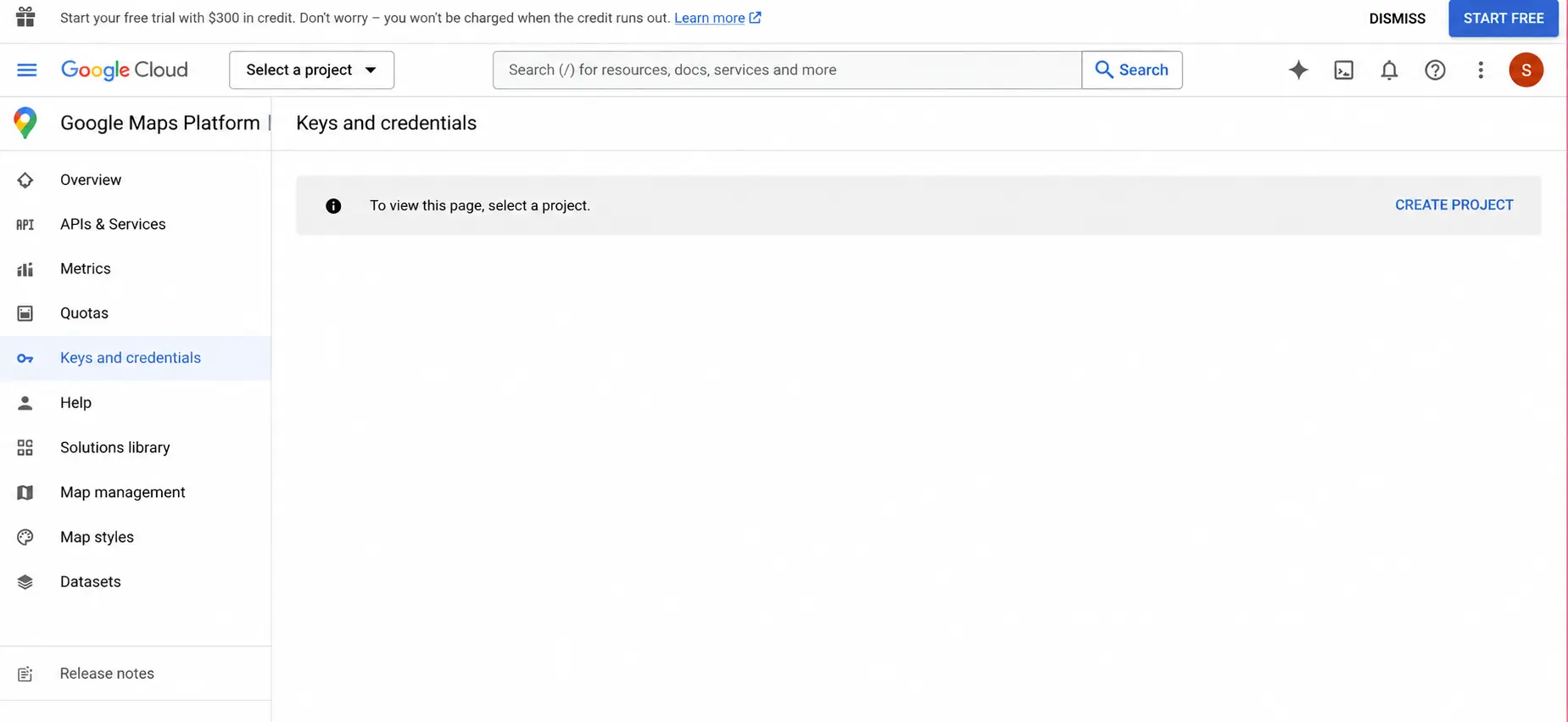
To start the process, you’ll need to sign in to the Google Cloud Console. Already have a Google account? Great! You can use your existing account or create a new one. To sign in and create a new project in the Cloud Console, follow this link.
Create a new project
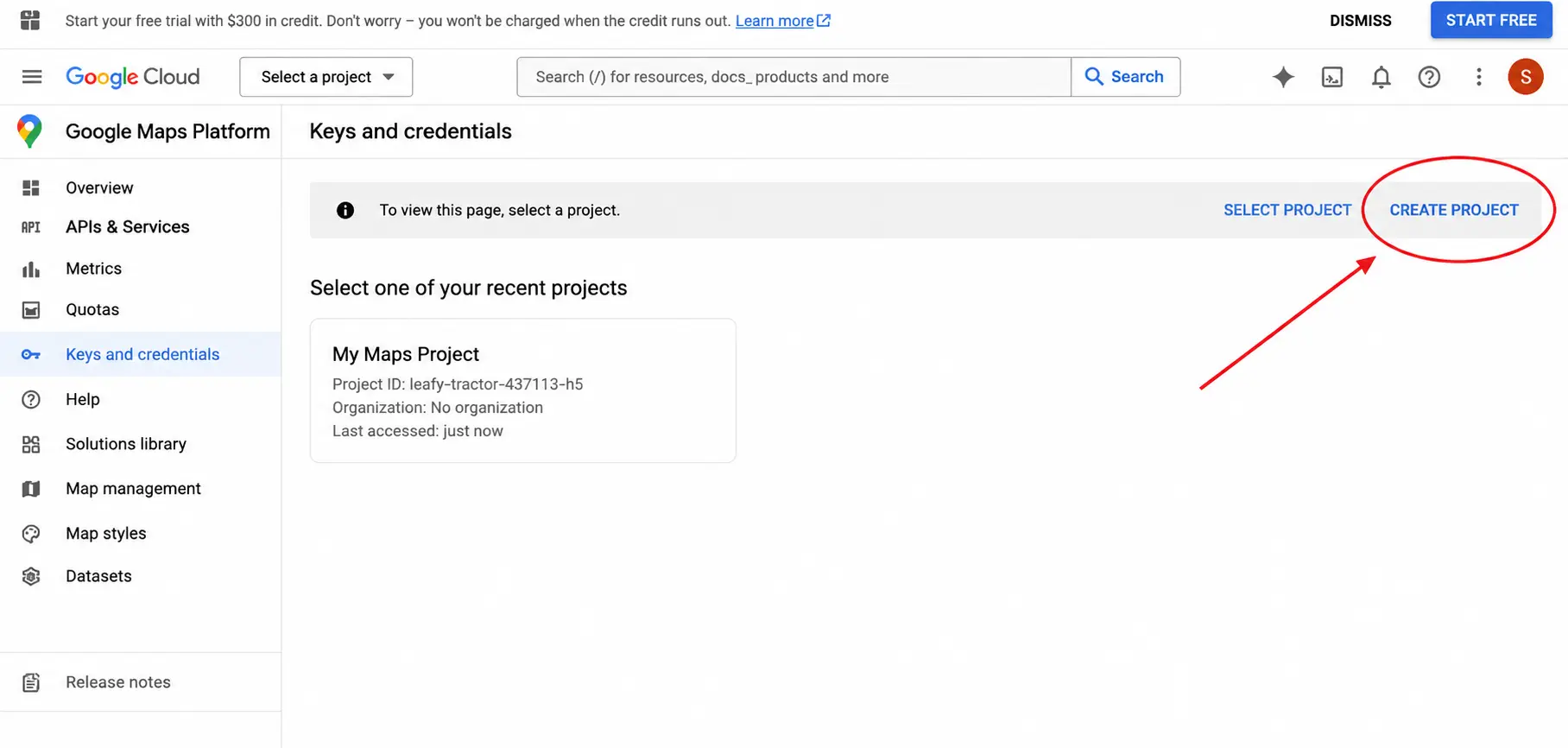
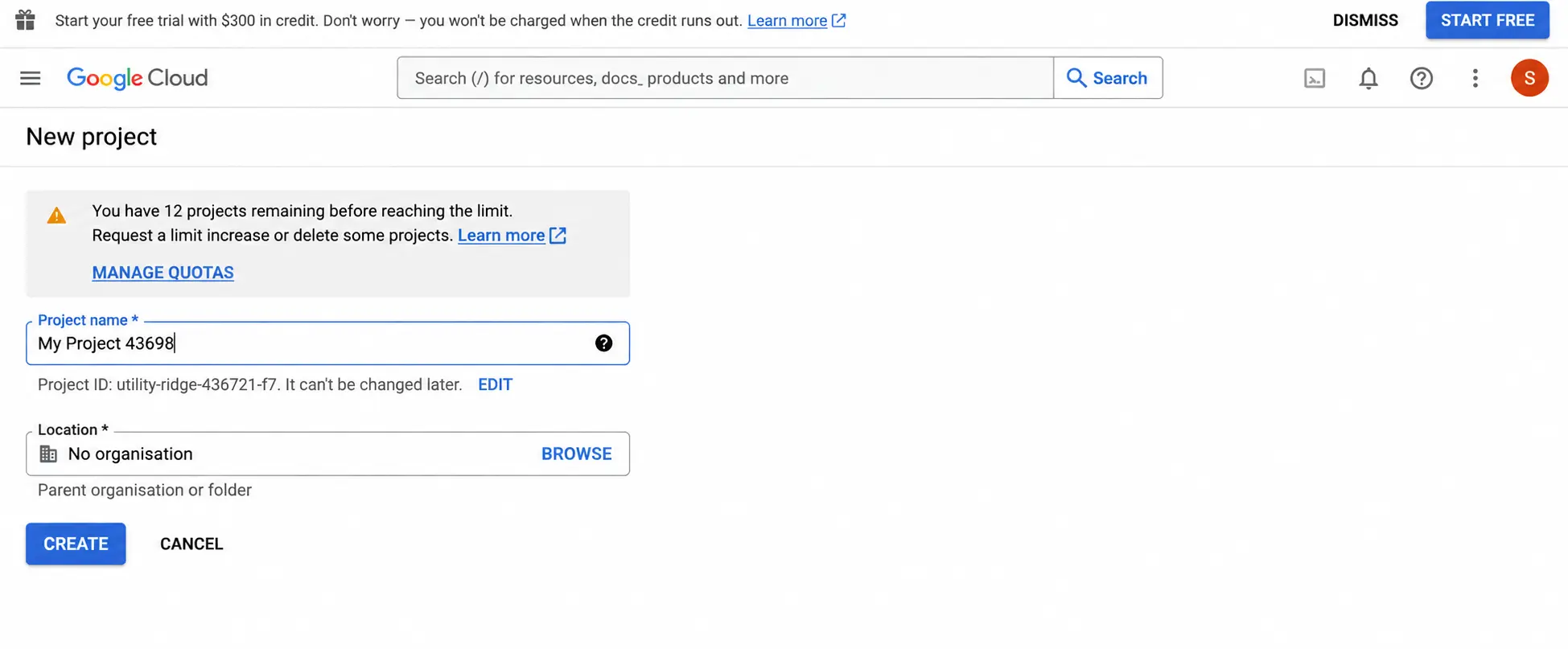
Next, click Create project, enter a name for your project and confirm.
Set up billing and budget limits
You’ll need to provide your billing details before you can use Google Maps Platform. If you haven’t set up a billing account yet, you’ll need to create one. Enter the required information, including your address and payment card details.
Important!
There’s no need to worry about unexpected charges straight away. Google has safeguards in place for payments, and your card won’t be charged automatically just because you’ve added it. You’ll need to authorise payments before you’re charged, for example, when your free trial ends or you enable paid services.
Enable the required APIs
Like other Google APIs, Google Maps Platform requires you to assign your project correctly and set up billing. To use its features, you’ll need to enable the relevant APIs or SDKs in the Google Cloud Console. Open the API Library, find the services you need and click Enable for each one.
If you want users to search for places and businesses on a map, enable the Places API. If you need to calculate travel times between locations, you’ll also need the Distance Matrix API. For route planning, enable the Directions API. The Geocoding API converts addresses into geographic coordinates, so you can also use it to turn street addresses into map locations.
Keep in mind that some features rely on more than one API, so you may need to enable several related services.
Our advice
Before enabling anything, think about which features your website or app actually needs. Enable only the APIs you plan to use, so you can keep costs and performance under control. Review your list of active APIs regularly and disable any you no longer need to reduce unnecessary usage and potential security risks.
Creating and managing a Google Maps API key
Go to the Keys and credentials section in Google Maps Platform and select Create credentials, then API key. This will generate a unique key for your project. At this stage, you can also enable the Google Maps Platform services you need for your website or application.
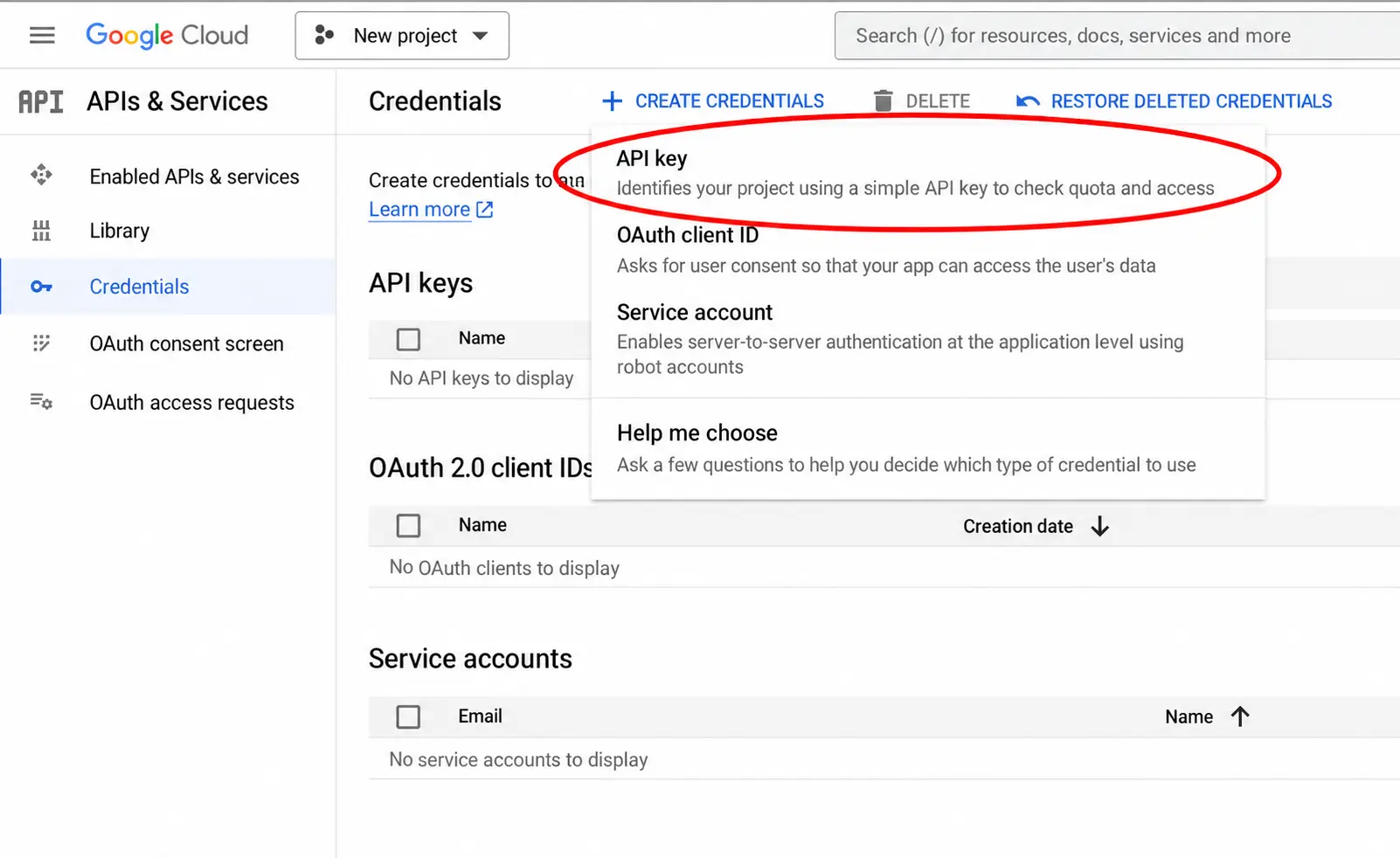
That’s it! Your API key is now ready. You’ll see a unique string of characters on the screen. Copy it and store it somewhere secure, where unauthorised people can’t access it.
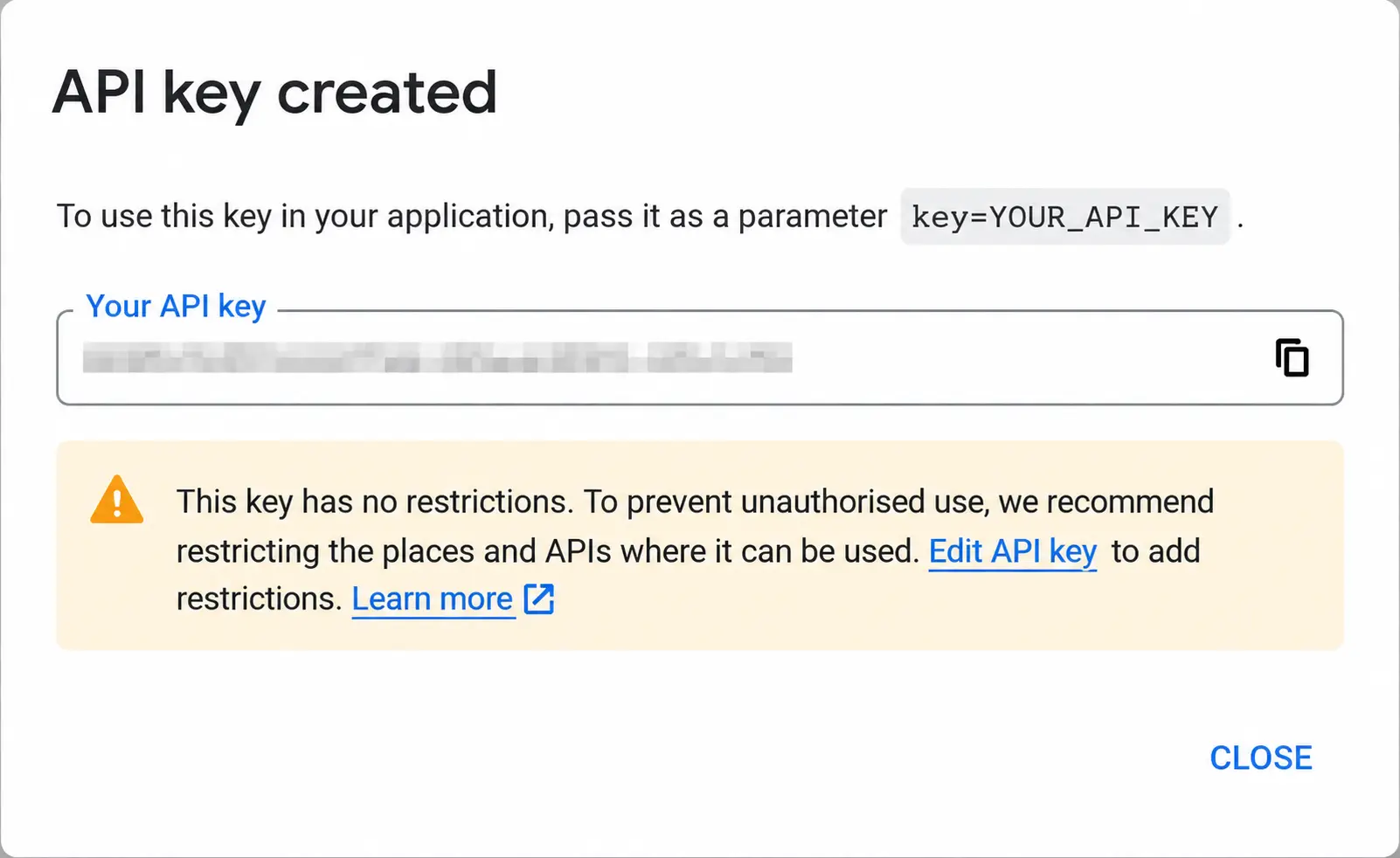
We recommend using a password manager or an encrypted file to store your API key. Never leave it in a plain text file or hard-code it into your application’s source code.
Follow best practices for restricting access
In the key restriction settings, you can specify which websites are allowed to use your map. Once you’ve copied your API key, configure its restrictions in the Google Cloud Console. You can allow specific websites, IP addresses or mobile apps to prevent unauthorised use. Here’s how to restrict access to your website.
Never share your API key publicly. Use it only where needed and protect it against unauthorised access.
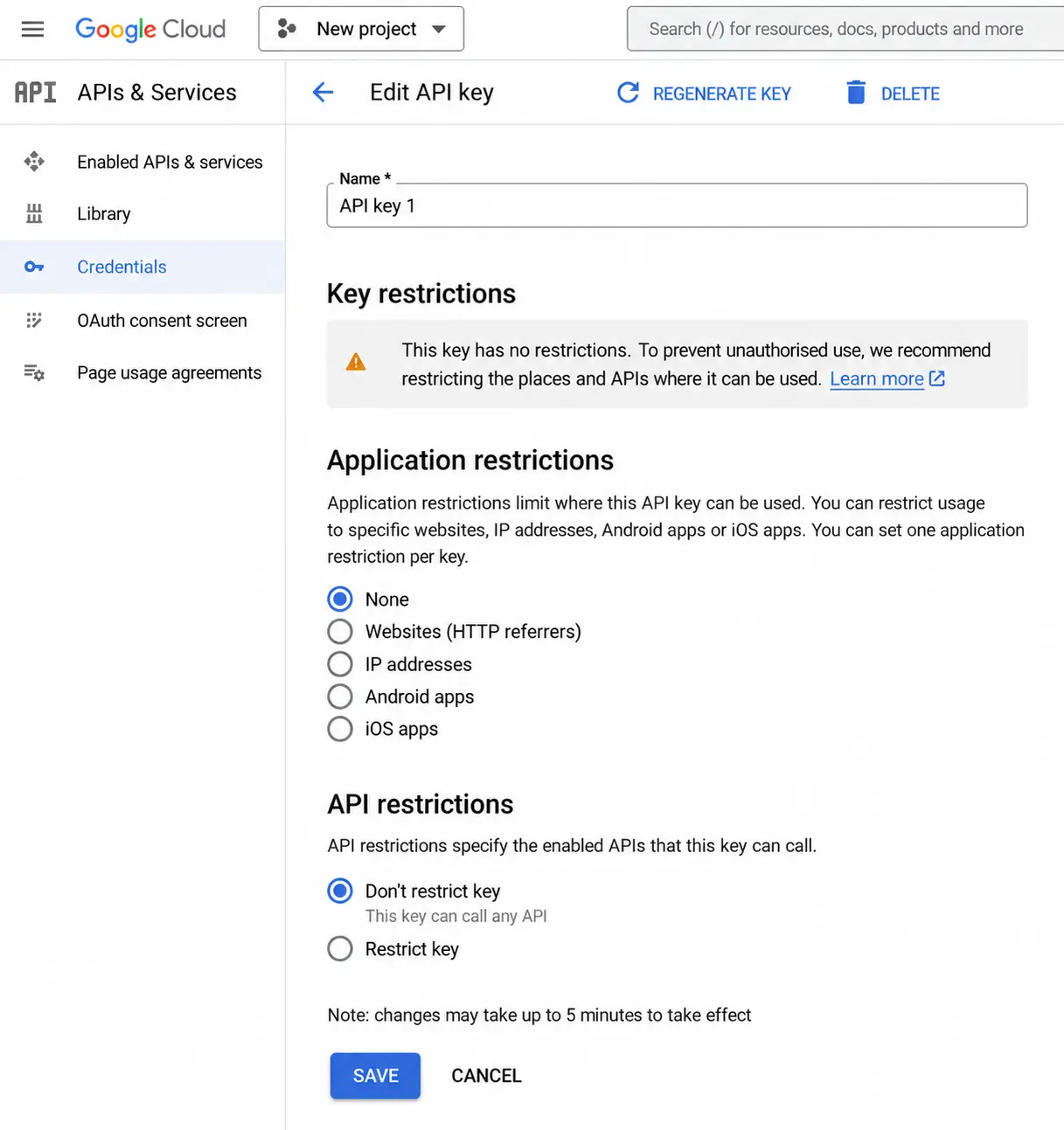
Go to the Google Cloud Console and select your project. Open your API key settings and find Application restrictions. Choose Websites (HTTP referrers) and enter your website addresses, adding /* at the end of each one.
This limits the key’s use to your specified websites, helping protect it from unauthorised access.
At Rodin, we always stress the importance of securing API keys. It’s best to do this when you first create the key. Treat it like the key to your home: you wouldn’t want it falling into the wrong hands. You can also create separate keys for testing environments or individual applications. Check API usage and costs in the console regularly to avoid unexpected charges.
Looking for an agency to help you generate, secure and implement your API key? Get in touch with us. We’d be happy to help!
How businesses use Google Maps
With the right configuration, your website can load maps quickly and reliably. Integrating Google Maps into a website or app can improve the customer experience and help businesses streamline their operations. Here are a few examples of how companies use Google Maps across different industries:
- Retail: A “find the nearest store” feature helps customers locate their closest branch quickly and easily.
- E-commerce: The Google Maps API can help businesses manage deliveries and track shipments, improving the overall customer experience.
- Logistics: Logistics companies can use advanced routing features to optimise routes and reduce transport costs.
- Travel and tourism: Interactive maps featuring attractions, hotels and restaurants help travellers plan their trips.
- Real estate: Property businesses can show the locations of available properties and highlight nearby amenities. This information can influence customers’ purchasing decisions.
Did you know Google Maps can do even more?
Google Maps also lets you create custom maps using your own data. This can be particularly useful for businesses analysing geospatial data or conducting market research. And there’s much more to explore, with features that can benefit both businesses and individual users.
Need help setting up Google Maps API?
Need help setting up Google Maps API? At RODIN, we can guide you through the entire process. Our team has extensive experience integrating Google Maps API into a wide range of projects. We can take care of everything, from configuring your Google account and generating an API key to integrating Google Maps into your website or application.
We also offer a range of digital marketing services, with a focus on:
- SEO to improve your website’s visibility in search results,
- Google Ads campaigns to reach potential customers,
- Marketing strategy tailored to your business goals.
There’s more to our work than these core services. We also help businesses manage their social media and deliver marketing training, always with a focus on achieving meaningful results for our clients.
Get in touch to arrange an initial consultation or request a quote for our services.
Frequently asked questions
Google Maps API is a collection of APIs and SDKs that lets you add Google Maps features to a website or mobile app. You can create interactive maps, display location-based data, calculate routes and build location-based services. Google Maps Platform includes tools for web, Android and iOS development, so you can choose the right solution for your project.
To create a Google Maps API key, sign in to the Google Cloud Console and create a project. Set up a billing account, enable the required APIs and generate your key under APIs & Services → Credentials. Then protect it by restricting access to the services and applications that need it. For a website, select HTTP referrers and add the relevant domain addresses. Test your implementation using the tools available in Google Cloud Console before making it available to users.
Google Maps Platform includes free monthly usage allowances, but the service isn’t unlimited or entirely free. The allowance depends on the API and its pricing category, so check the current pricing before choosing a solution. You can monitor usage in Google Cloud and set budget alerts to help manage costs as traffic grows. Keep in mind that budget alerts don’t automatically stop charges.
Google Maps Platform offers services for displaying maps, finding places and calculating routes. The Maps JavaScript API lets you build and customise interactive maps for a website, while the Google Places API provides information about points of interest, including business addresses, opening hours, ratings and reviews. The Routes API calculates routes and travel times, with features that can support route optimization for delivery and logistics services. The older Directions API and Distance Matrix API are still documented, but Google recommends the Routes API for new implementations.
Yes. You can embed Google Maps on a website using the Maps Embed API, or use the Maps JavaScript API if you need more control over the map’s appearance and behaviour. You can customise markers, map styles and the zoom level to suit your website. Street View imagery provides 360-degree panoramic views of locations, while the Street View API offers additional ways to display this imagery in an application.
The Geocoding API converts a street address into geographic coordinates, such as latitude and longitude, and can also convert coordinates into addresses. The Geolocation API estimates a device’s location using signals such as nearby Wi-Fi networks and mobile phone towers. Google also offers the Elevation API, which provides elevation data for a specified location or a series of points along a route. These tools can help applications work with different types of location data.
Businesses can use Google Maps API to help customers find stores, explore nearby points of interest and plan journeys. For example, retailers can display store locations and opening hours, while travel websites can show attractions and accommodation on interactive maps. Logistics companies can calculate routes, compare travel times between multiple origins and destinations, and streamline operations. The right features depend on the business, the data it needs and the experience it wants to offer customers.
The Maps Agentic UI Toolkit is an experimental Google developer toolkit for building interactive map and place displays in conversational AI experiences. It can help AI assistants show location details, map views and route previews alongside their responses. It’s designed for projects that need more than a conventional map, such as AI-powered travel planning or local search. Since the toolkit is still experimental, check Google’s documentation before deciding whether it’s suitable for your project.